

Creating Product Options with Templates
Quickly create product option sets using preset templates without starting from scratch. Templates provide standardized configurations for common industries that can be used directly or as a foundation for personalized customization.Accessing the Template Page
1
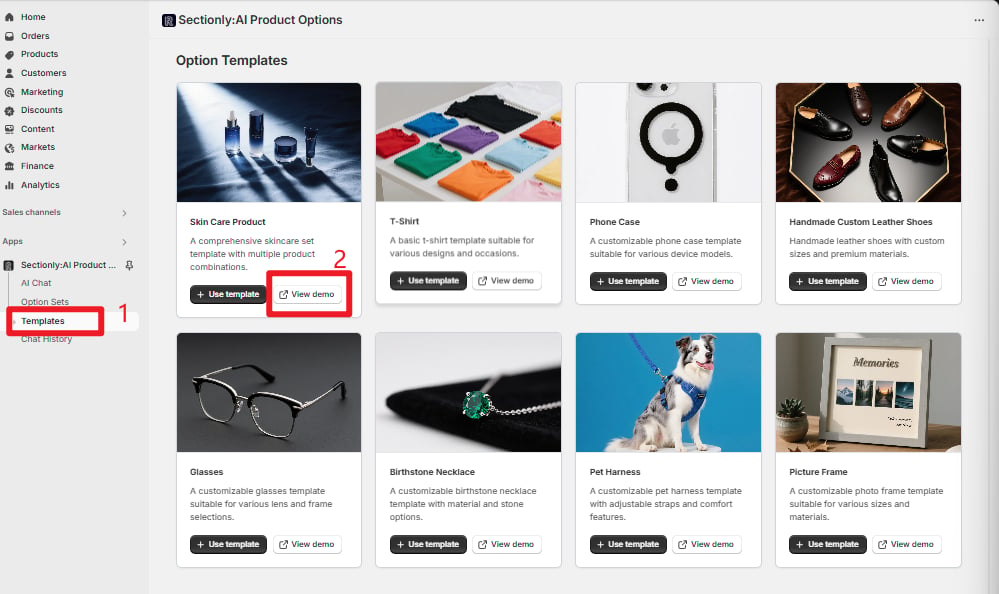
Navigate to Template Center
Follow this path to access the template page:App → Sectionly:AI Product Options → Templates
Core Workflow
Preview Template Effects
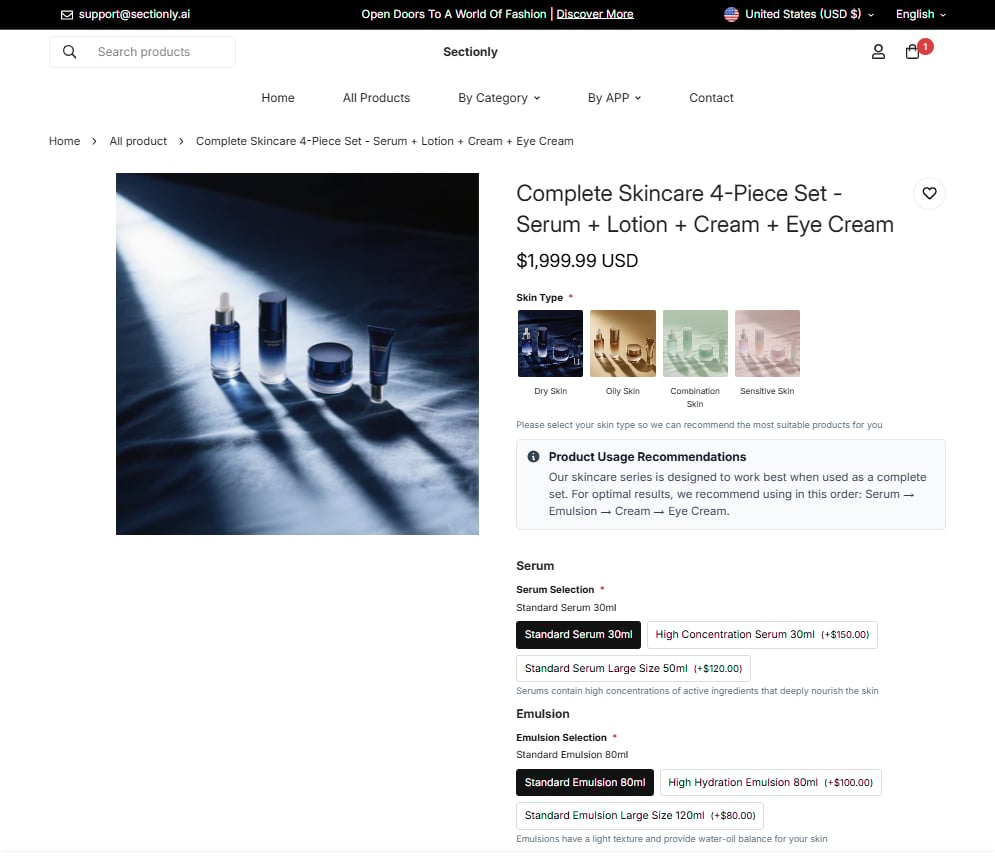
Before selecting a template, we recommend previewing the actual effects to understand the complete customization experience users will have on the frontend.Preview FeatureClick the “View demo” button to jump to the template frontend demo page, simulating the complete customization flow when users place orders.
- Selecting T-shirt colors, sizes, and other basic options
- Interactive flow for personalized customization options
- Price calculation and display effects
- Overall user experience flow
Reusing Template Configuration
After confirming the template meets your needs, you can directly reuse the template configuration and make personalized adjustments.1
Enable Template
Click the “Use template” button, and the system will automatically redirect to the template’s configuration page.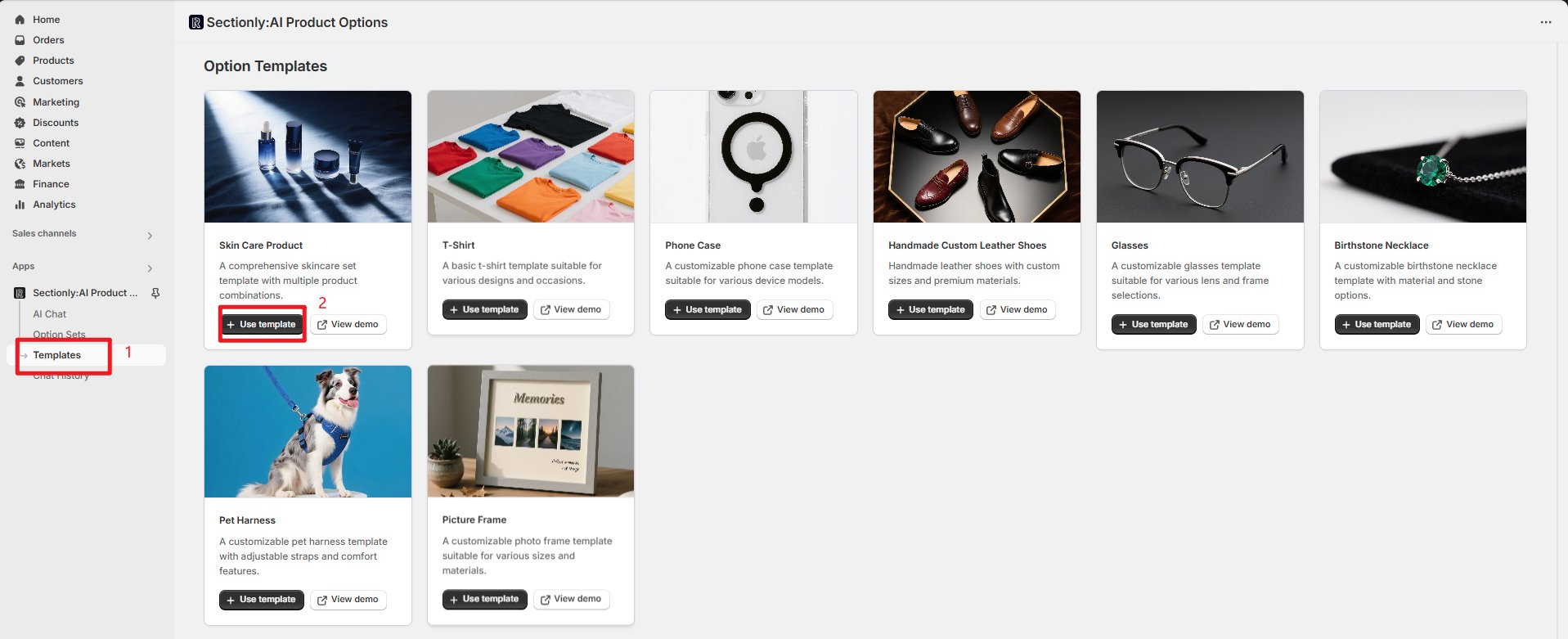
2
Element Management
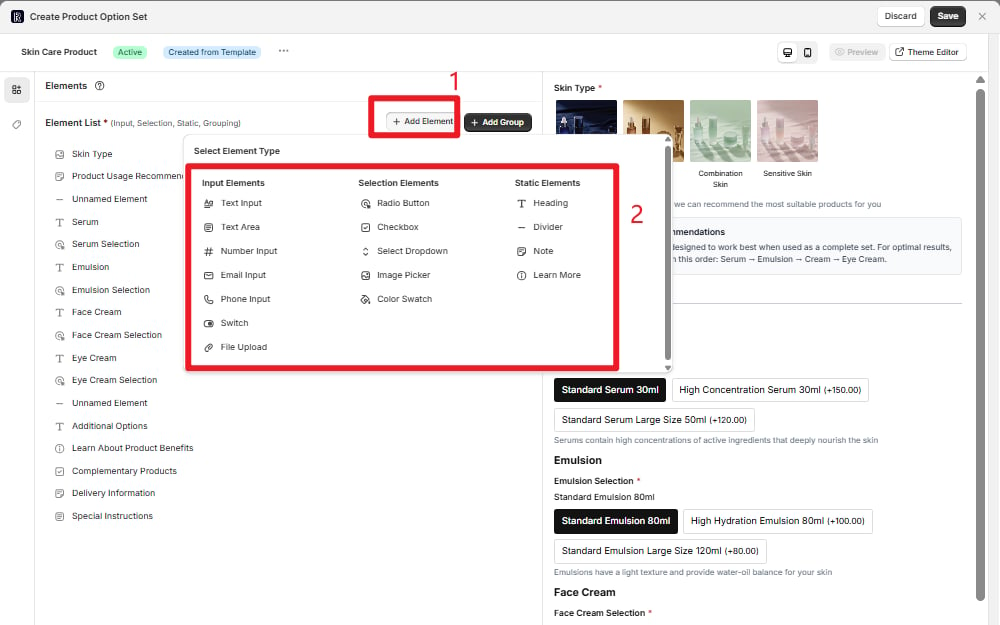
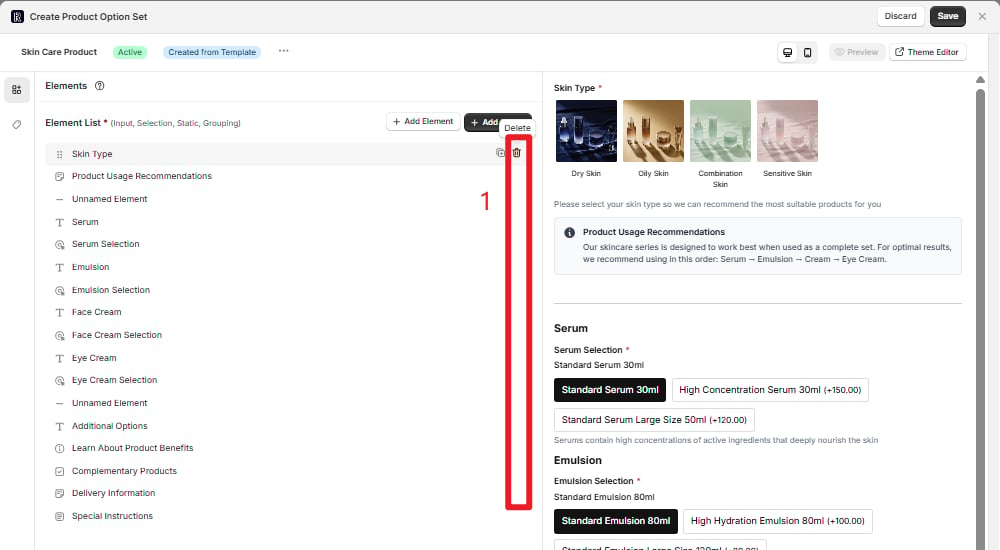
On the configuration page, you can make deep adjustments to the template:Adding New Elements:
- Click the ”+ Add Element” button to add new customization items
-
Supports multiple element types: text input, dropdown selection, color picker, etc.
- For unnecessary options, you can delete them directly
-
Maintain simplicity in option sets to improve user experience
3
Modify Configuration Items
Each element can be configured in detail: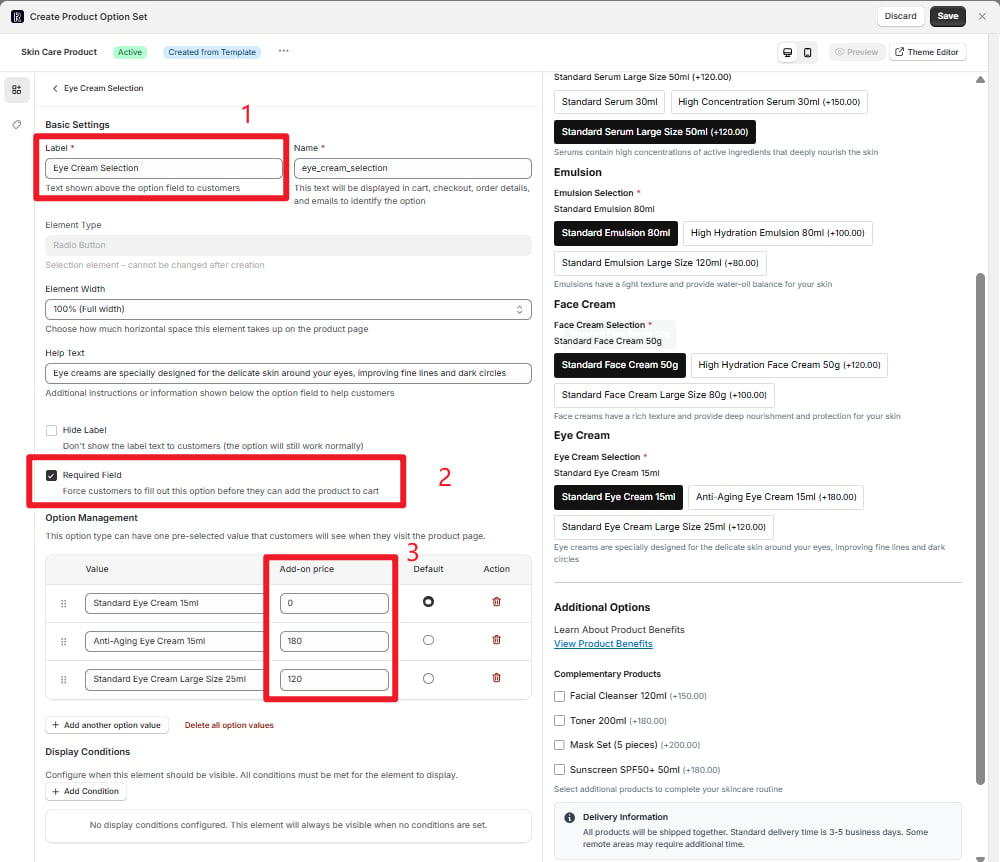
- Basic Settings
- Pricing Settings
- Display Conditions
- Title Content: Modify the display name of options
- Required Field: Set whether it’s a mandatory option
- Help Text: Add option descriptions
Basic Information Configuration
Option Set Settings
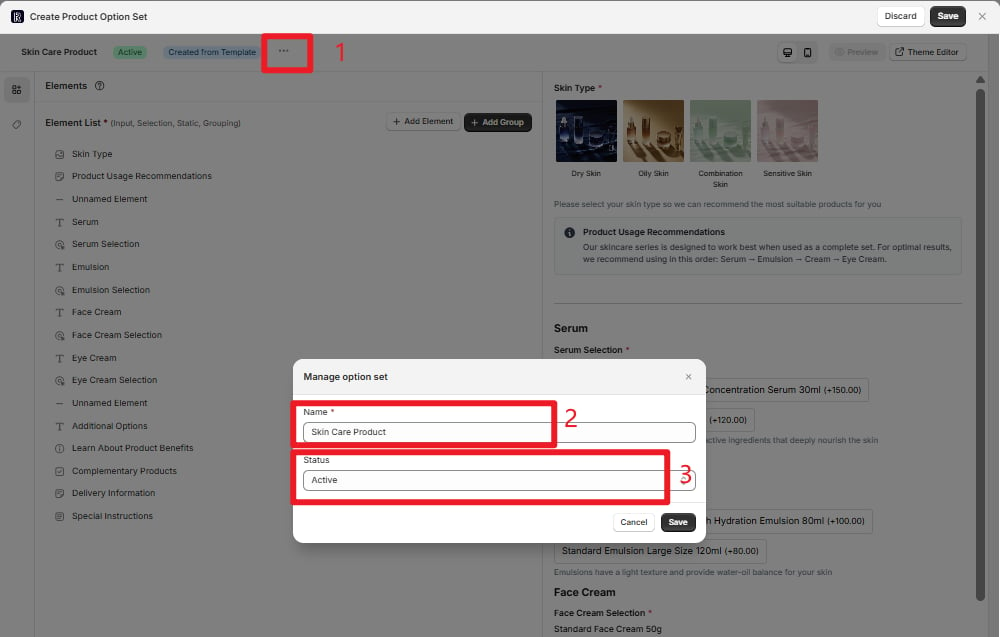
Configure the basic information and status of the option set:- Basic Information
- Status Management
- Option Set Name: Set a descriptive name for the option set
- Description: Add usage description for the option set
- Tag Categories: For easier management and searching later
Option Set Application and Settings
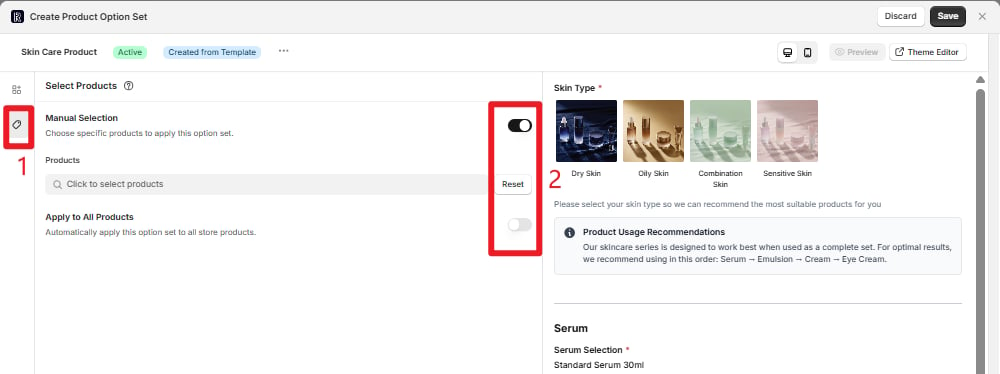
Choose the application scope of the option set, determining which products will display this option set.- Manual Selection
- Apply to All
Manual Selection
Suitable for customization needs of specific products:- Enable the “Manual Selection” toggle
- Click “Click to select products”
- Search and select target products (supports multiple selection)
- Confirm the selected product list
Use CaseSuitable for scenarios requiring precise control, such as high-end custom products, limited edition items, etc.
Save and Management
Save Option Set
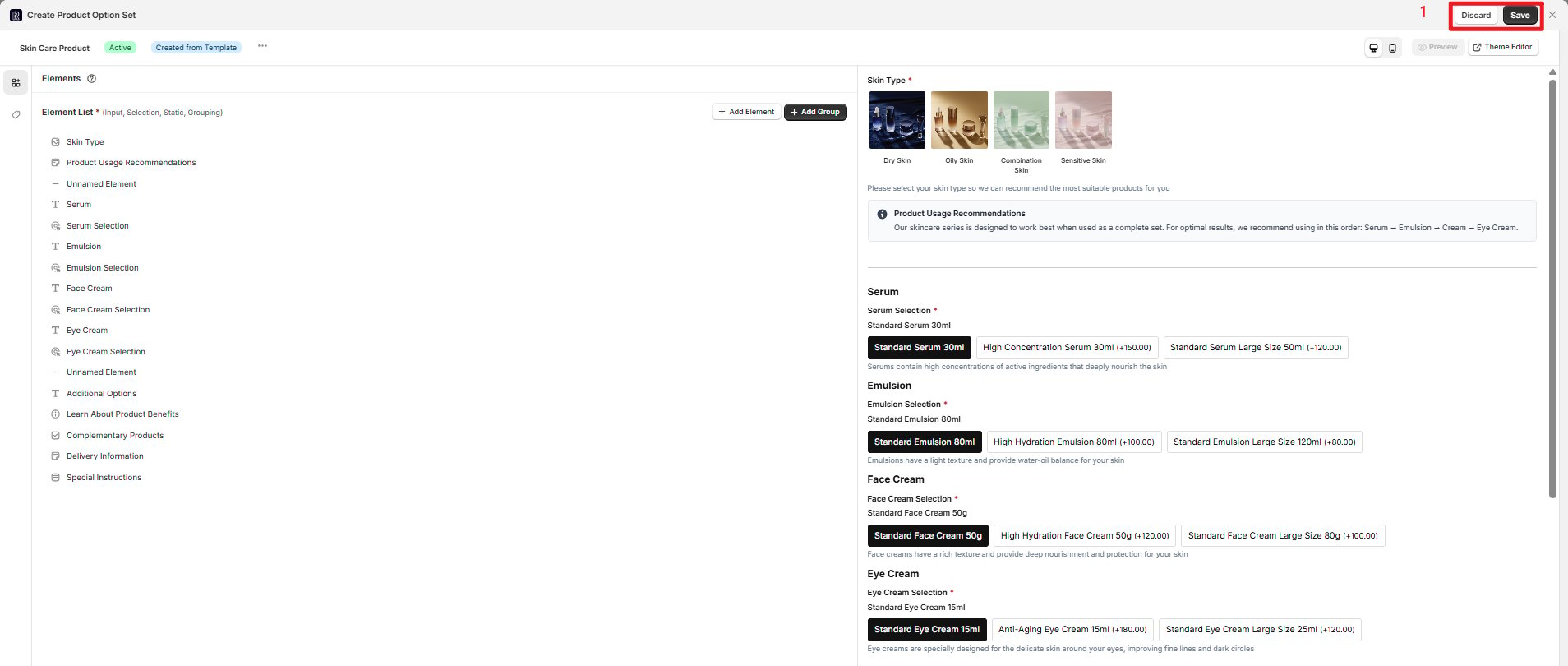
After completing configuration, you need to save the option set to make it effective:1
Save Configuration
Click the “Save” button to save the current configuration:
- Template configuration will sync to the left Option Sets list
- Option set status becomes manageable
- Effects can be seen on product pages
2
Discard Changes
If you’re not satisfied with the current configuration, click the “Discard” button:
- Discard all current changes
- Return to the template selection page
- No configuration information will be saved
Next Steps
After completing template configuration, you can:- Test Effects: View the actual display effects of the option set on product pages
- Continue Optimization: Adjust option configuration based on actual usage
- Copy Template: Create more variants based on current configuration
- Manage Status: Enable or disable option sets at any time
TipTemplates are just the starting point. You can customize deeply based on specific business needs to create unique product customization experiences.