

Accessing the AI Chat Interface
Navigation Path
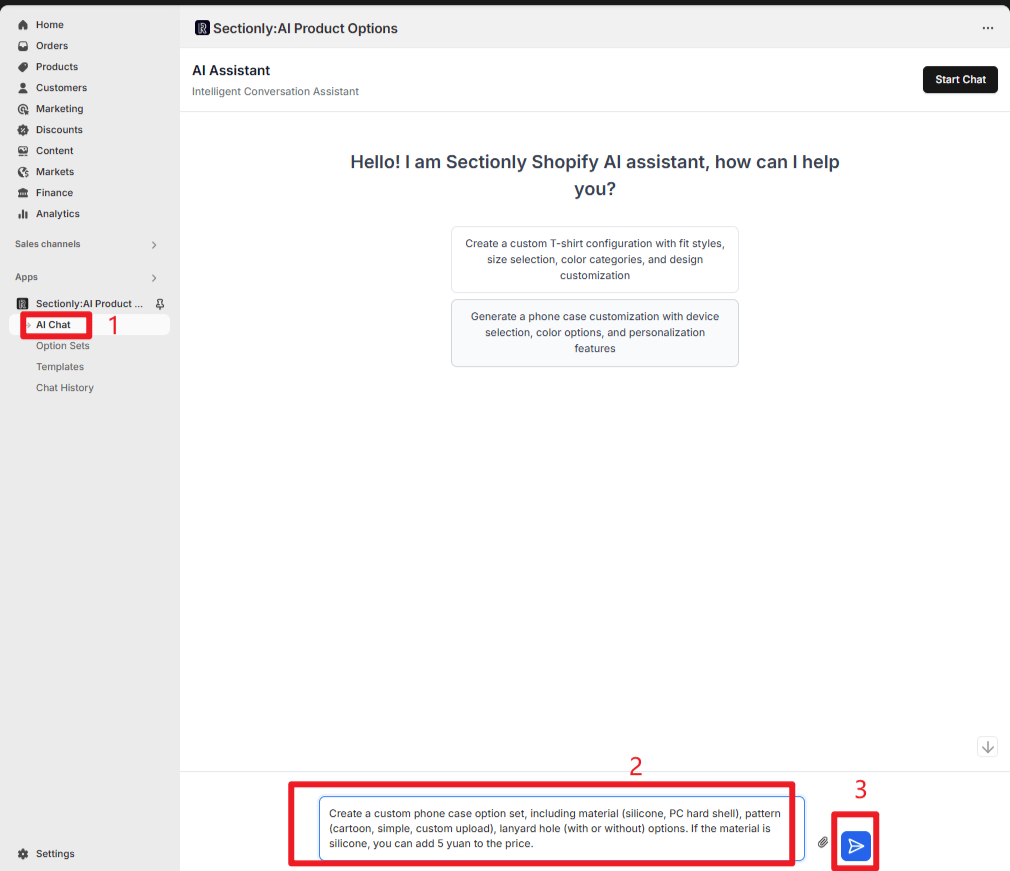
Access the App admin dashboard
Select "Sectionly:AI Product Options"
Click "AI Chat"
Core Workflow
Input Requirement Description
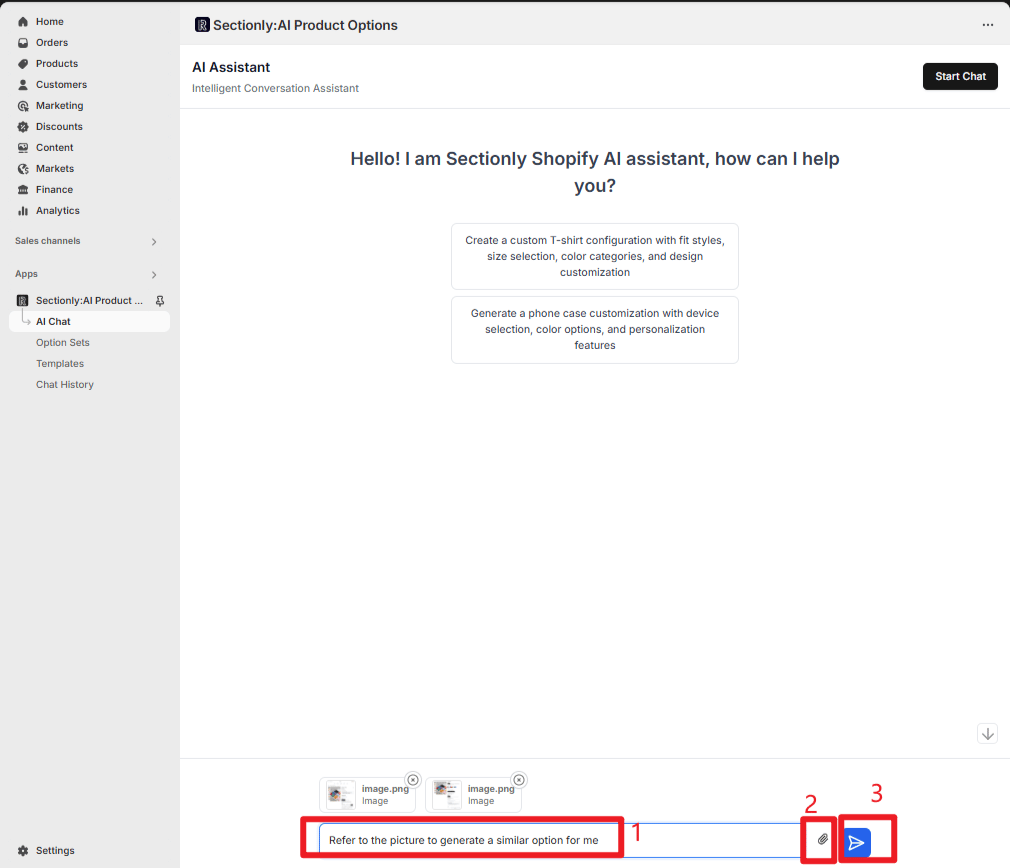
In the chat input field, describe your product option set requirements in natural language. You can use plain text, images, attachments, links, and other formats to assist with explanations.- Plain Text Example
- Attachments/Images/Links
Conversational Interaction and Optimization
Generation and Preview
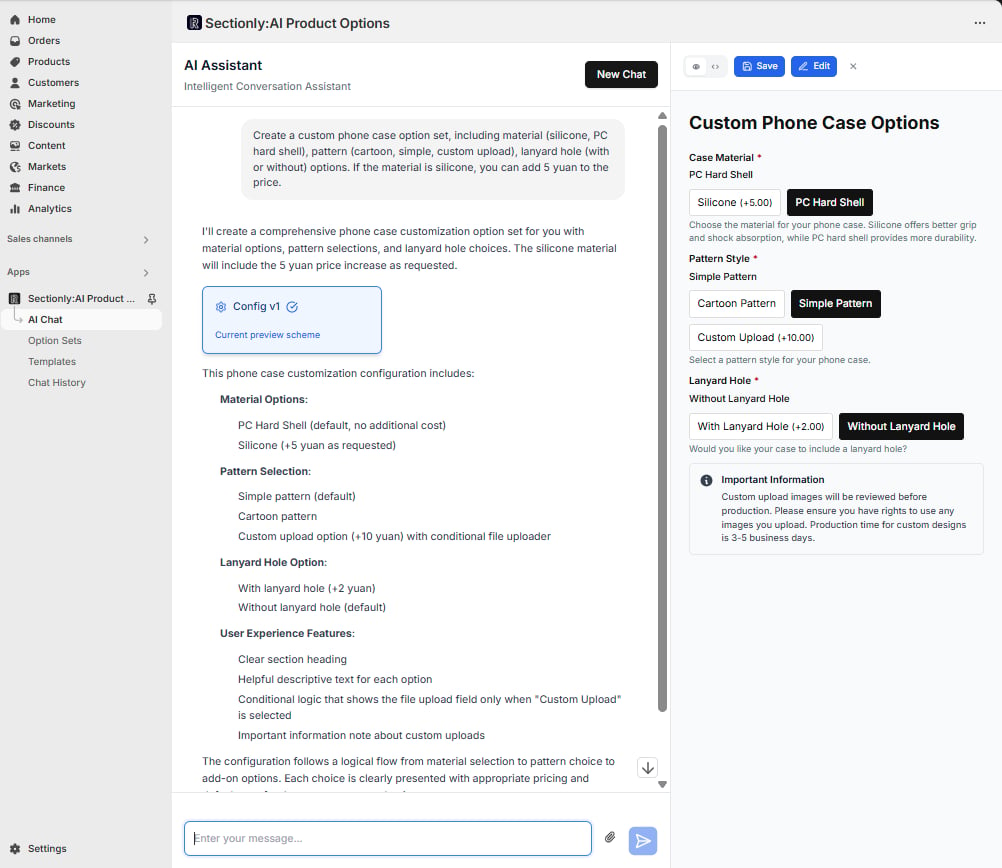
After entering requirements, press Enter and AI automatically generates the product option set configuration
Left side displays conversation content, showing generation results (including version numbers and configuration overview)
Right side preview area presents the frontend effect of the option set (such as option layout and interaction logic)
Continue Optimization
If you’re not satisfied with the generated results, you can provide additional instructions for optimization: Optimization Example: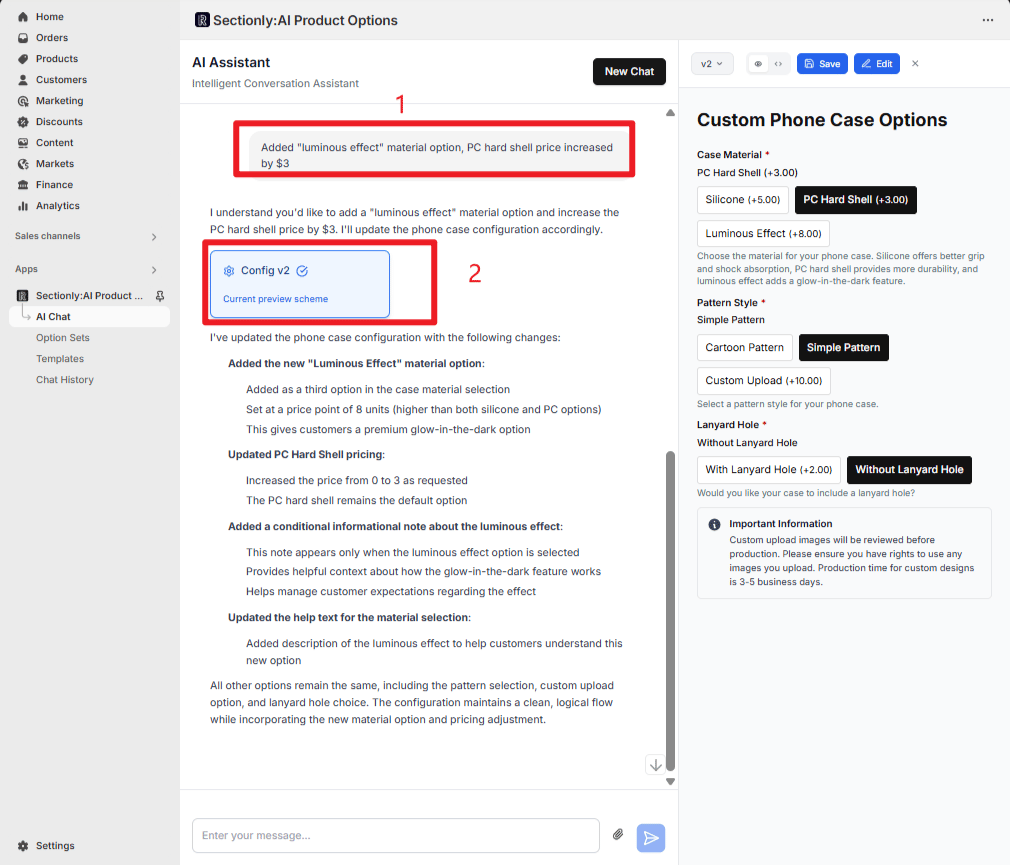
Version Switching and Comparison
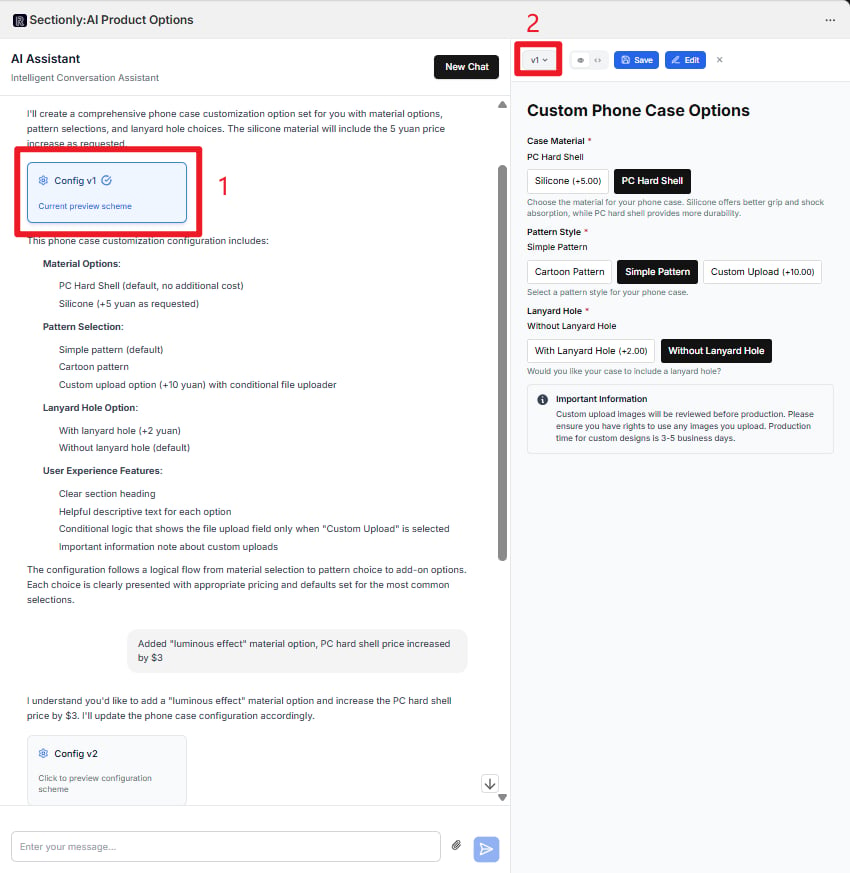
- Left Chat Area Switching
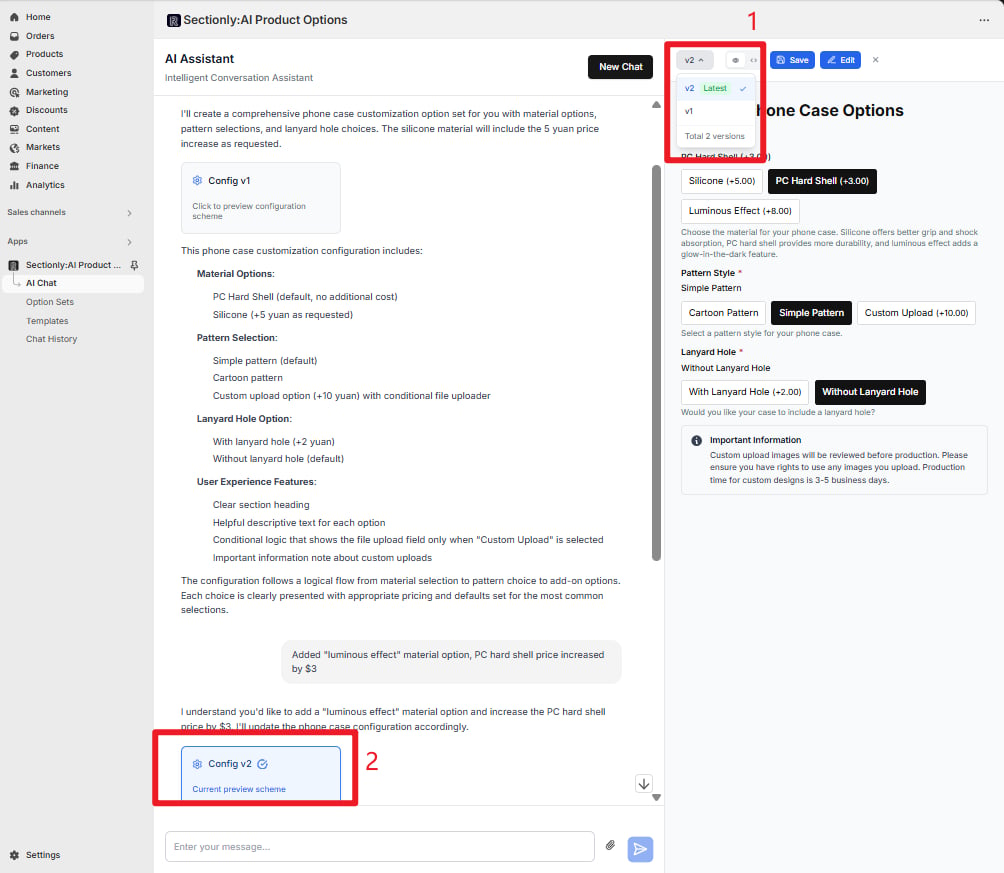
- Right Dropdown Switching
- The chat area retains all historical version cards
-
Click on different versions (
Config v1/Config v2) - The right preview area will sync to show the corresponding configuration effect
-
Easy to compare differences across multiple optimization rounds
Pausing Conversation or Adding Requirements
Pause Execution
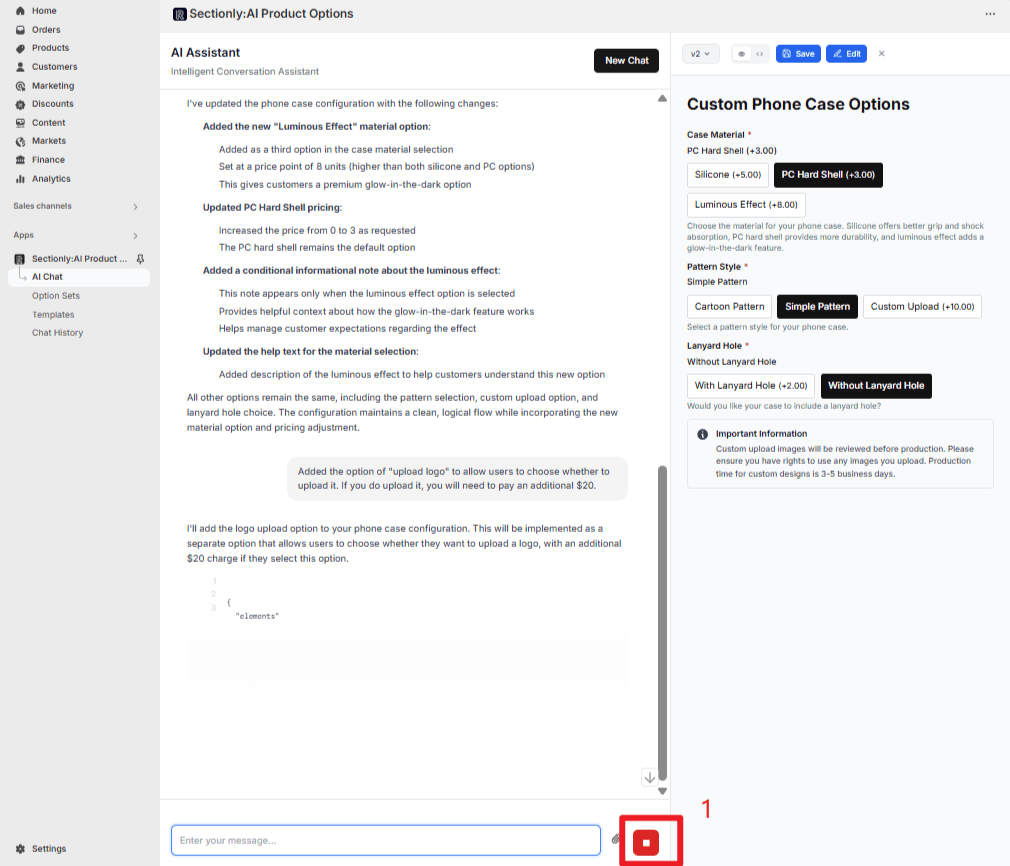
Pause Execution
- Click the pause button on the right side of the input field
-
AI will immediately stop the current execution process
Continue Execution
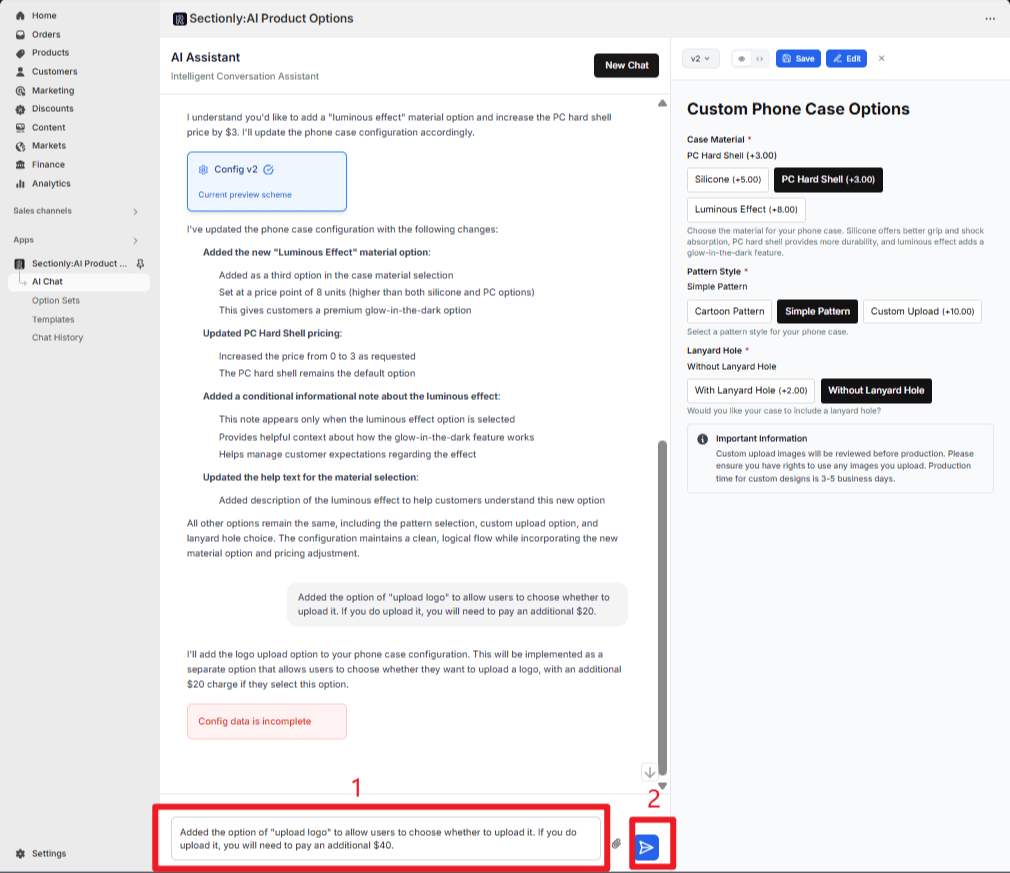
Continue Execution
Configuration Saving
Save Operation
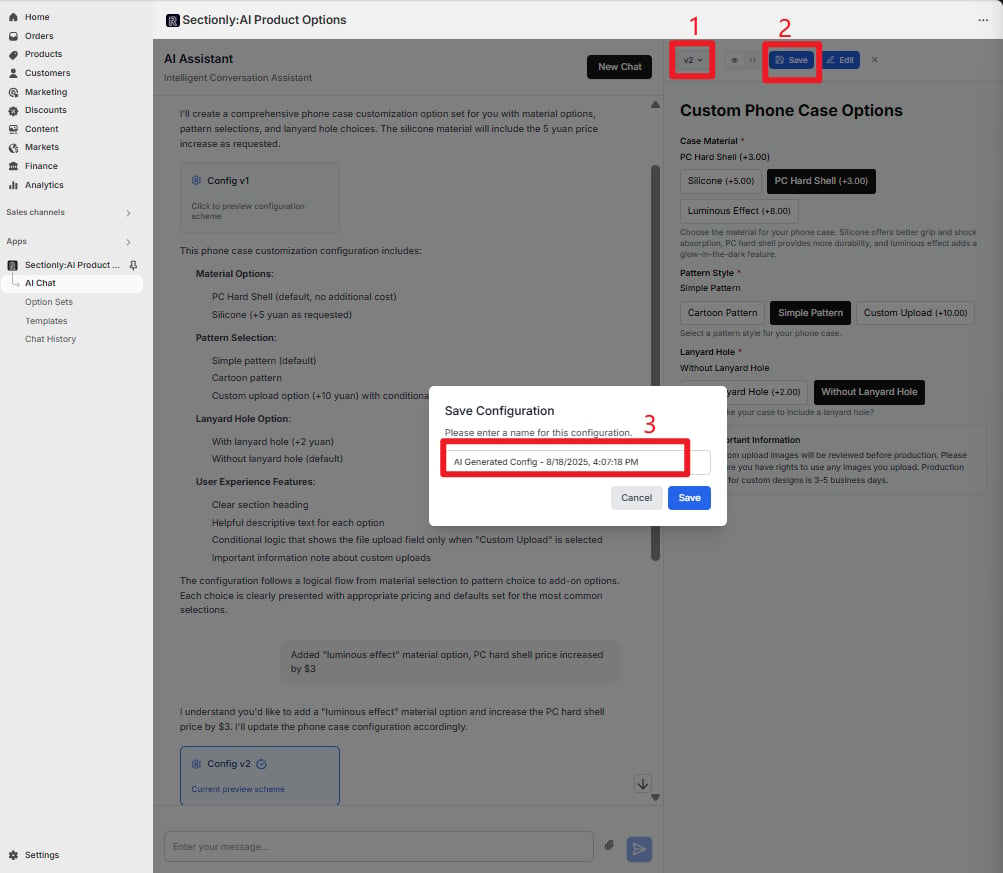
After confirming a version configuration, click the "Save" button next to the configuration card in the chat area
The "Save Configuration" dialog will appear
Name the configuration (defaults to a timestamped name like AI Generated Config - 8/18/2025, 4:03:37 PM)
The configuration will automatically sync to the "Option Sets" list in the left navigation
Manual Configuration Editing
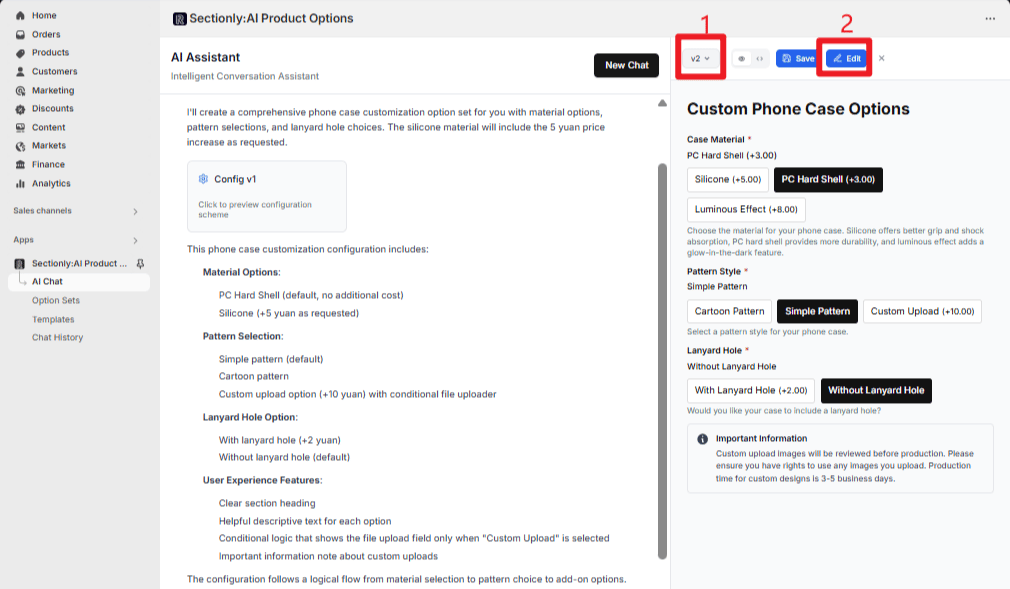
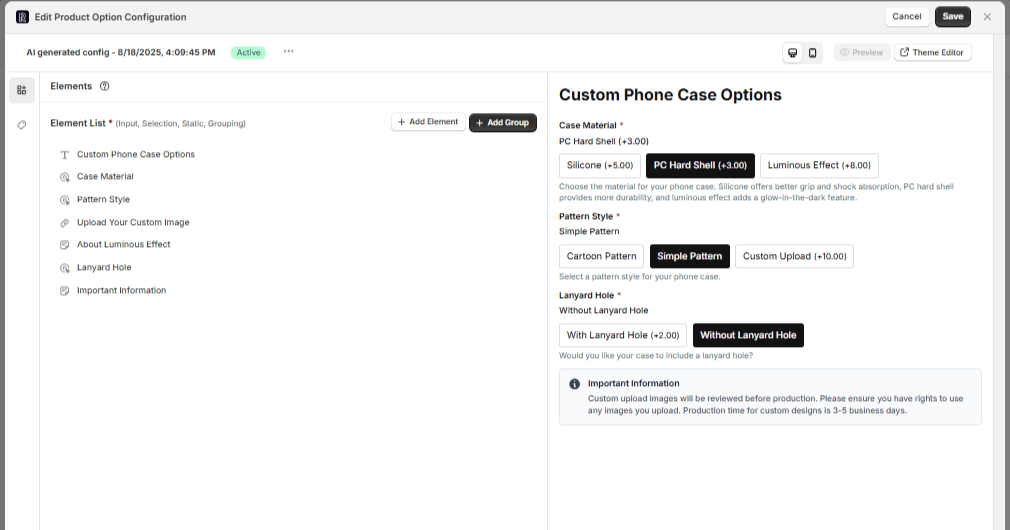
Click the "Edit" button to open the current version's configuration dialog
This interface supports manual editing and modification of the configuration
After completing manual edits:
- Click the
Savebutton in the top right to save modifications - Click
Cancelto discard changes and close the edit dialog
The configuration will automatically sync to the "Option Sets" list in the left navigation
Applying Option Sets to Product Configuration
Access Option Sets List
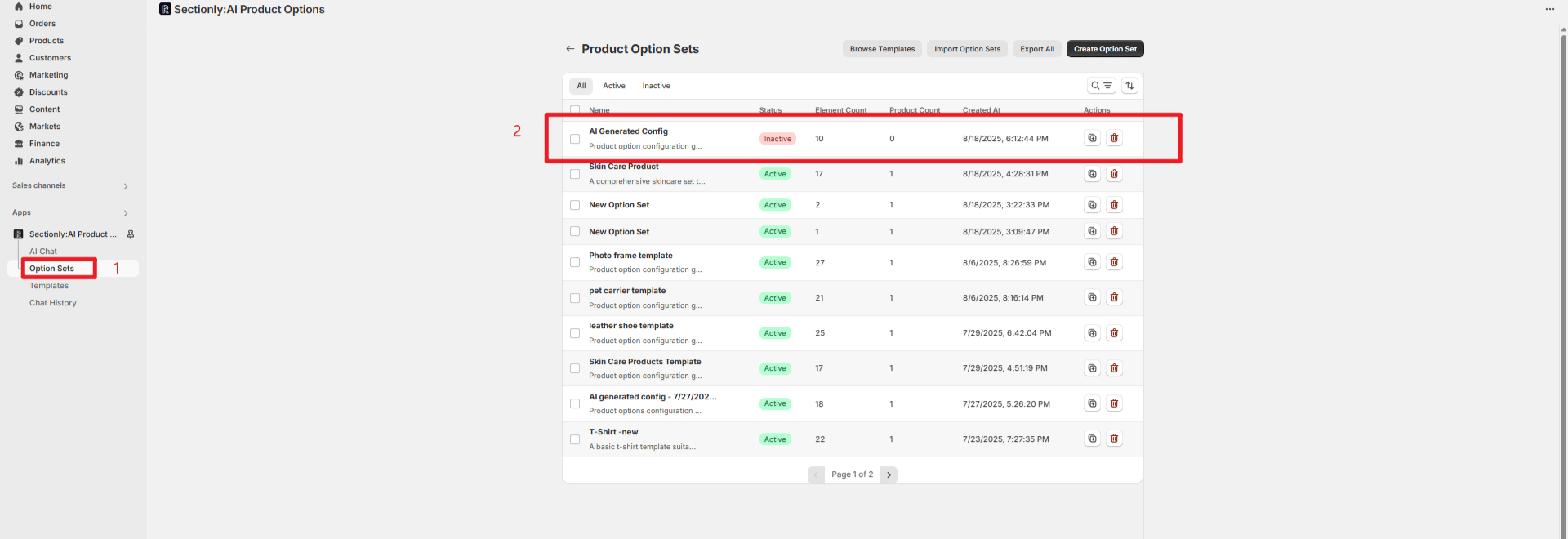
Click "Option Sets" in the left navigation
Find the AI-generated and saved option set (e.g., AI Generated Config)
Click to enter the edit page
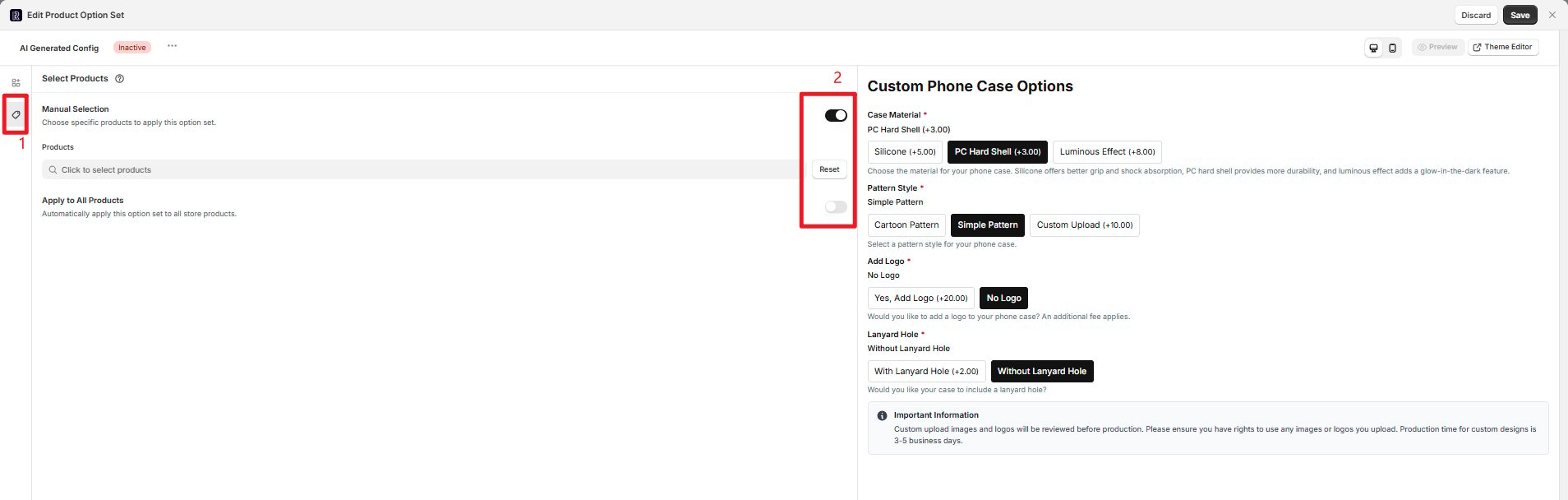
Set Product Application Scope
- Manual Selection
- Apply to All Products
- Enable the “Manual Selection” toggle
- Click “Click to select products”
- Search and select target products (supports multiple selection)
Basic Information Configuration
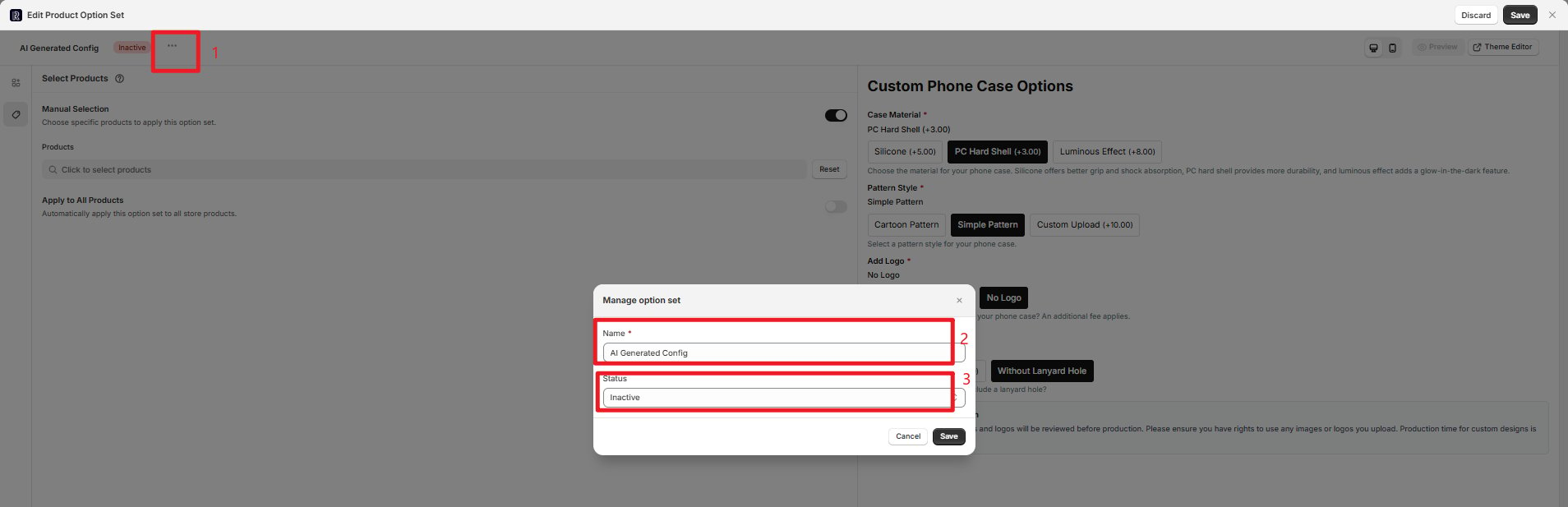
Click the "⋯" button next to "New Option Set"
In the popup dialog, modify the option set name (e.g., "Summer T-shirt Customization")
Select status:
- “Active” (effective, can be applied to products)
- “Inactive” (inactive, temporarily not applied)
Final Save
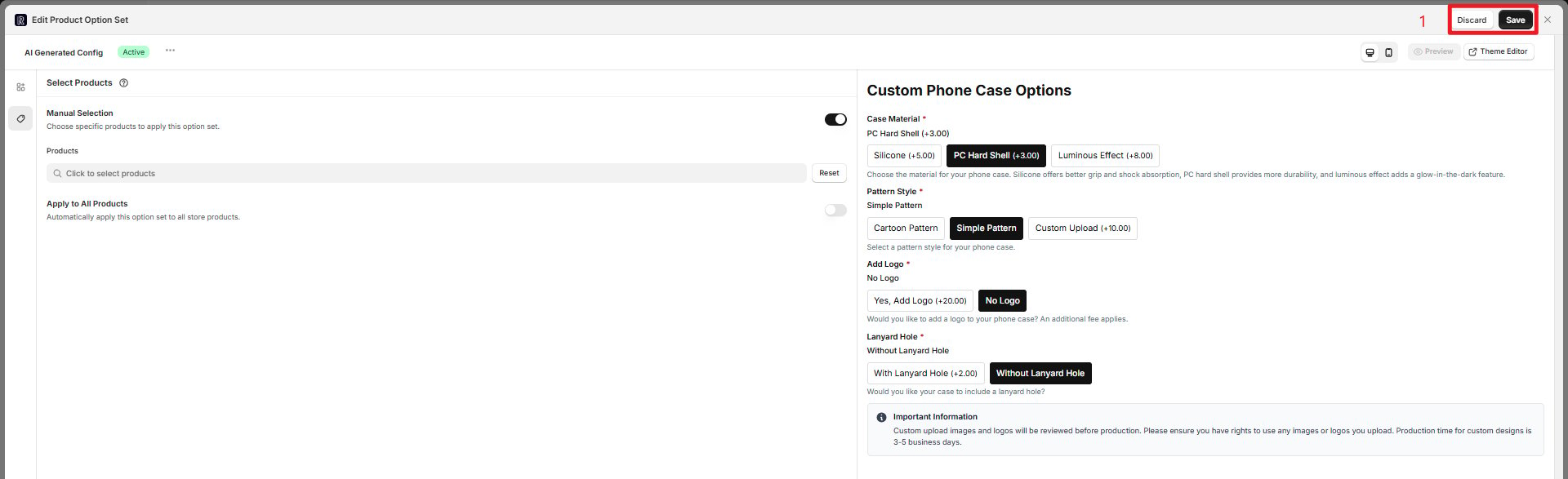
Click the "Save" button to sync the template configuration to the left Option Sets list
Click the "Discard" button to abandon reuse
Important Notes
- Providing detailed requirement descriptions improves AI generation quality
- Make good use of multimedia assistance (images, documents, links)
- Utilize version comparison functionality to select optimal configurations
- Use the pause function wisely to avoid erroneous generation