

Inquiries appear in Shopify admin → Sectionly B2B Wholesale → Inquiries. Shopify draft orders are created asynchronously and appear under Orders → Drafts. If draft creation fails, the inquiry remains available with an error and a retry action.
Before you start
- Install the production Sectionly B2B Wholesale app and confirm that you can open it in Shopify admin.
- Configure B2B products or template rules, minimum order quantities (MOQ), and required custom fields in Quote Settings.
- Prepare your real storefront domain, product IDs, and variant IDs. Variants must belong to the corresponding products in the same store.
Create a public browser key
Open Shopify admin → Apps → Sectionly B2B Wholesale → Headless and use the Create API key form.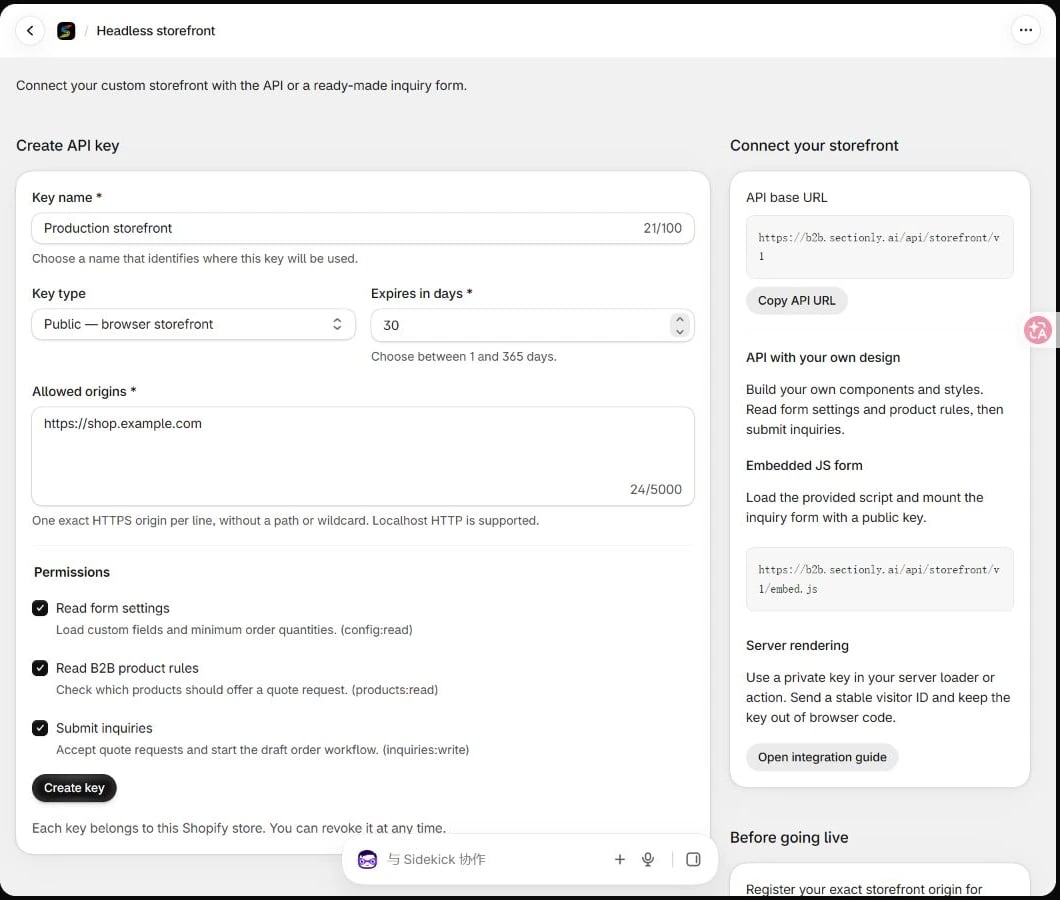
Create a public key with an allowed storefront origin, expiry, and permissions
- Key name: enter a recognizable name, such as
Production storefront. - Key type: select Public — browser storefront.
- Allowed origins: add each real storefront origin on its own line, such as
https://shop.example.com. Add thewwworigin separately if you use it. - Expires in days: choose 1–365 days. Use a short duration for testing and record the expiry of production keys.
- Permissions: select the access you need:
- Read form settings —
config:read - Read B2B product rules —
products:read - Submit inquiries —
inquiries:write
- Read form settings —
- Click Create key and immediately save the complete
sb2b_pk_key. Its full value is shown only once; the list subsequently shows a prefix.
https://shop.example.com and https://www.shop.example.com are different origins. Local HTTP origins such as http://localhost:3000 and http://127.0.0.1:3000 are supported; use HTTPS in production.
Create a private server key
For SSR or a server relay, create a separate key with Key type → Private — server only. Set its name, expiry, and permissions. A private key does not need a browser origin allowlist.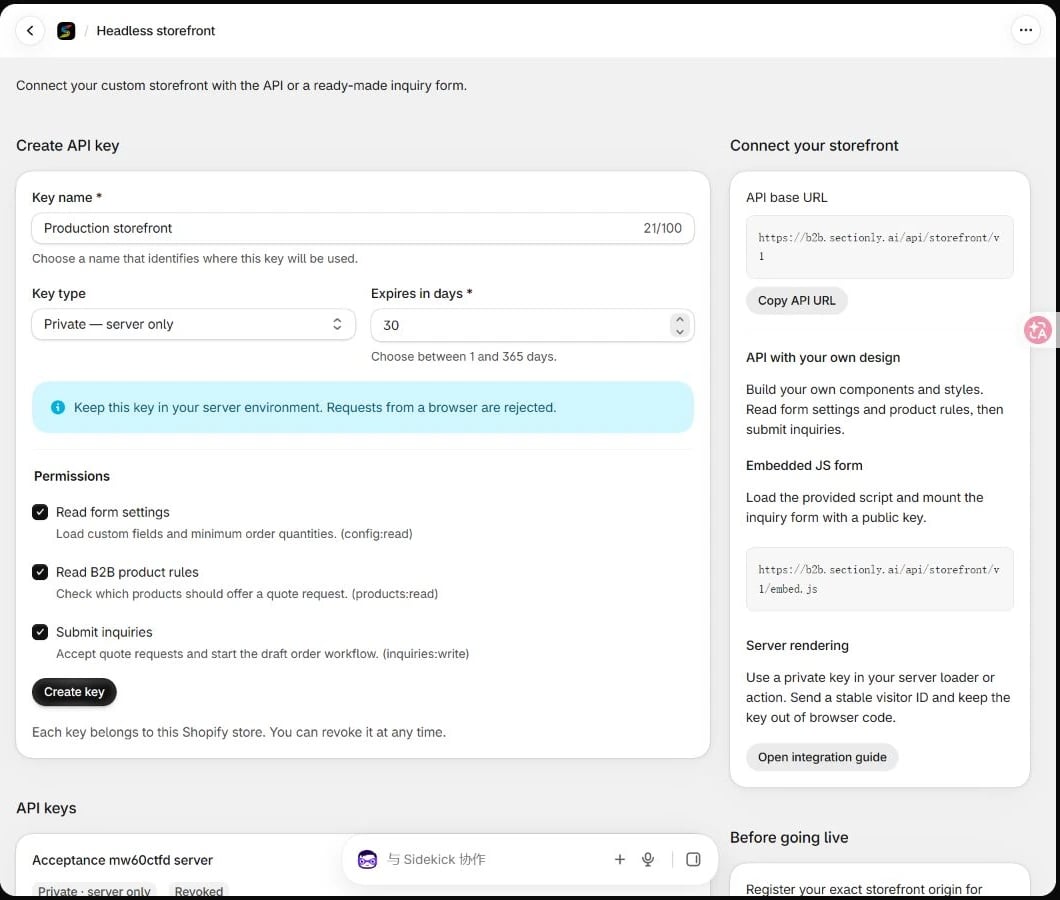
Private keys show server-only guidance instead of browser origin fields
sb2b_sk_ key in your server environment or secret manager. If it is lost, create a replacement and revoke the old key.
Choose your integration
The production API base URL is:
Embed the ready-made inquiry form
Add this to a product page. Replace the key, Shopify store domain, product, and variant data with values from your storefront data source. Do not reuse the same product ID across every product page.Customize the appearance
Load your override stylesheet afterembed.css and scope it to .sectionly-b2b-form. For complete control over field layout, buttons, or interaction, use the API with your own components.
For a site with a restrictive CSP, allow the app domain for scripts, styles, and API connections. Use your site’s actual nonce for the inline configuration script when required.
Use the API with your own styles
Put the following three browser examples in the same frontend ES module or<script type="module">, in order: visitor identity, configuration and product reads, and the submission function. Connect submitInquiry to your form and add loading, success, and error states.
Keep a stable visitor ID
Browser requests requireX-Sectionly-Visitor, a stable random identifier of 16–80 characters. Do not use one hard-coded value for every customer. This example retains the identifier within the current browser tab and falls back to a page-local ID if storage is unavailable.
Load form settings and product rules
Submit an inquiry and retry safely
The quantity18 below is an example. Use your actual MOQ and include every required custom field returned by /form-config. If the merchant requires Estimated Quantity, for example, include that field too.
201 with {success: true, inquiryId}. The inquiry is saved first; draft order creation and notifications follow asynchronously. Verify the draft order’s status in the app rather than treating inquiry acceptance as proof that a draft already exists.
Use a new Idempotency-Key for each new inquiry. After a network failure, timeout, or 5xx, retry the same operation ID and unchanged request body. A successful replay returns the original inquiry ID without starting another draft order workflow. Reusing a successful key with different content returns 409.
The embedded form keeps its identity for in-page retries. Reloading starts a new form session. If your custom client must recover across reloads, persist the operation ID and immutable request body until the result is known.
Requests are limited to 256 KiB, 50 products, and 250 variant rows. Quantities must be positive integers and their total must fit PostgreSQL’s signed integer range. An invalid item rejects the entire inquiry; it is not silently omitted. Multi-product submissions can use items, each containing product data and lineItems.
Use server rendering or a server relay
Your server can fetch/form-config and /b2b-products to render the initial form, then relay submissions through your own backend. Call this helper from a Hydrogen server action, a Next.js server route, or another backend. Read the key from server-only configuration and never return it to the browser.
visitorSessionId from your server session and keep it stable for the visitor. Validate the caller, form data, and request origin on your own relay; apply CSRF protection and rate limits. Fix the upstream API destination instead of accepting arbitrary target URLs from the browser.
Do not forward a browser Origin header with private-key requests, or send both Authorization and X-Sectionly-Key. Preserve the upstream HTTP status, JSON, and Retry-After for your frontend. Do not turn all failures into HTTP 200, or generate a new operation ID automatically after an uncertain network result.
Verify the merchant workflow
- Open a real product page and check its B2B display rules and required fields. A quantity below MOQ should produce clear feedback.
- Submit one clearly marked test inquiry with a reachable test email, company details, and a valid quantity.
- In Inquiries, check the product, variant, quantity, and draft order link. If draft creation fails, review the error and use the retry action.
- Check the buyer acknowledgement and merchant notification configuration. Provider acceptance does not guarantee inbox delivery.
- Confirm that Needs attention lists the inquiry once. After opening its details and returning home, an unquoted inquiry should remain Awaiting quote.
- Check desktop and mobile layouts, long company and product names, SKU selection, quantity changes, clearing, and repeated clicks. Keep or clean up the test data according to your team’s policy.
Errors and rate limits
Each visitor can make 120 reads/minute and 20 writes/hour. Public traffic also has IP limits of 600 reads/minute and 100 writes/hour. Private SSR traffic does not share one server-IP quota across the whole storefront, but it must still identify visitors correctly.
Rotate keys and go live
- Create a replacement before the old key expires, with the necessary permissions and exact production origins.
- Update and deploy the browser or server configuration, then verify reads and inquiry submission.
- In API keys, click Revoke on the old key. Check its name in the confirmation dialog, click Revoke key, and confirm its status becomes Revoked.
- After uninstalling and reinstalling the app, create new keys and update the storefront configuration.
sb2b_sk_ key appears in browser code or page source. Use separate keys for development and production.
See the complete B2B Headless API contract for additional request and response details.
Updated November 11, 2026. Screenshots use a demonstration store. Replace all example domains, keys, product IDs, and variant IDs with your own values.